How sync works
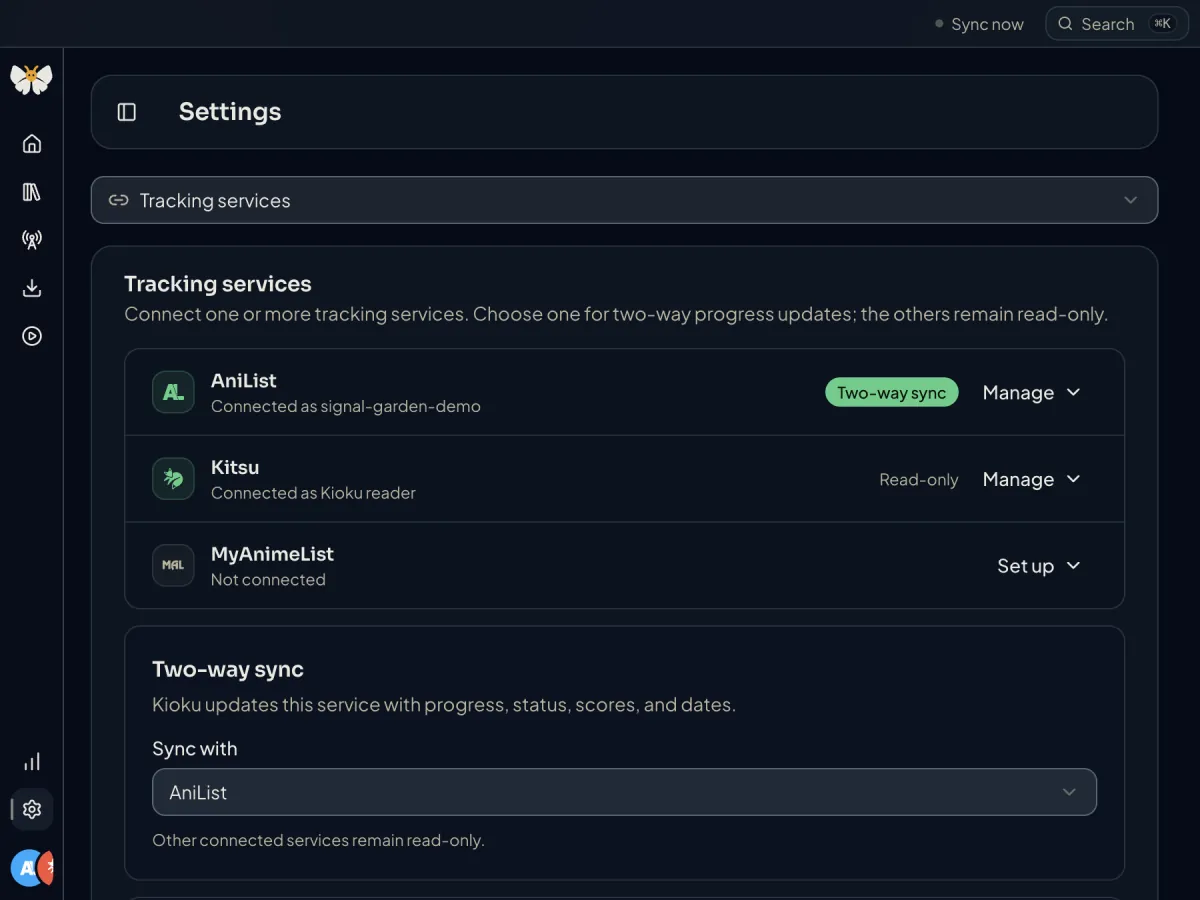
You can connect AniList, MyAnimeList, and Kitsu at the same time, but exactly one connected service handles two-way sync of your progress and statuses. Connect one and Kioku uses it automatically; a Sync with control appears in Settings → Tracking services once there is a choice to make. The others stay connected as read-only list previews and remain available for search.
Two things are independent of the service you sync with. Home's airing schedule always uses AniList's public airing data for library titles matched to AniList or MyAnimeList, and each title's catalog details come from its own catalog match; see Catalog details.
Your own API client
AniList and MyAnimeList connect through an API client that you register on the service's developer page. Nothing is baked into Kioku. Choose Set up on the service's card and the form shows every value to enter, with a button that opens the developer page and copy buttons for each field. Kitsu needs no client: it signs in with your Kitsu email and password.
After you save, the client ID is kept in Kioku's settings file, and the client secret is encrypted with a key your operating system manages and stored in Kioku's local credential vault. The tokens Kioku receives when you connect live in the same vault. Kioku's interface only ever learns whether a secret is saved, never its value.
Treat the client secret like a password. Do not paste it into chats, screenshots, or bug reports. If it is ever exposed, regenerate it on the developer page and save the new value in Kioku; the provider keeps the old one active until you do.
AniList
- In Settings → Tracking services, open the AniList card and choose Set up.
- Choose Open AniList developer page (it goes to
anilist.co/settings/developer) and create a new client. - Use the name and redirect URL exactly as Kioku shows them. For the installed app the redirect URL is
kioku://auth/anilist. AniList requires an exact match. - Save on AniList, then paste the Client ID and Client secret into Kioku.
- Choose Save credentials, then Connect AniList, and approve the request in your browser.
MyAnimeList
- In Settings → Tracking services, open the MyAnimeList card and choose Set up.
- Choose Open MyAnimeList developer page (
myanimelist.net/apiconfig) and create an ID. - Copy each value from Kioku's form: App Name, App Type web, the App Description, the App Redirect URL (Kioku shows two lines; paste both, one per line), Homepage URL, non-commercial use, your name, and hobbyist purpose. Leave the logo, privacy policy, and terms fields blank.
- Submit. MyAnimeList shows the Client ID and Client Secret on the app page.
- Paste both into Kioku, choose Save credentials, then Connect MyAnimeList and finish signing in in your browser.
The App Type must be web, not mobile, for the redirect to work with a desktop app.
Kitsu
Open the Kitsu card, enter your Kitsu email and password, and choose Connect Kitsu. Kioku sends the password to Kitsu once to obtain tokens and does not store it. The tokens are kept in the encrypted credential store like the other services'.
Two-way sync, conflicts, and imports
While a choice of two-way service is outstanding, Kioku pauses writes to every service, so your lists are never changed by accident. Sync now in the sidebar status runs a sync on demand, and Sync local progress to providers in Settings → Automation controls whether progress you record in Kioku is pushed.
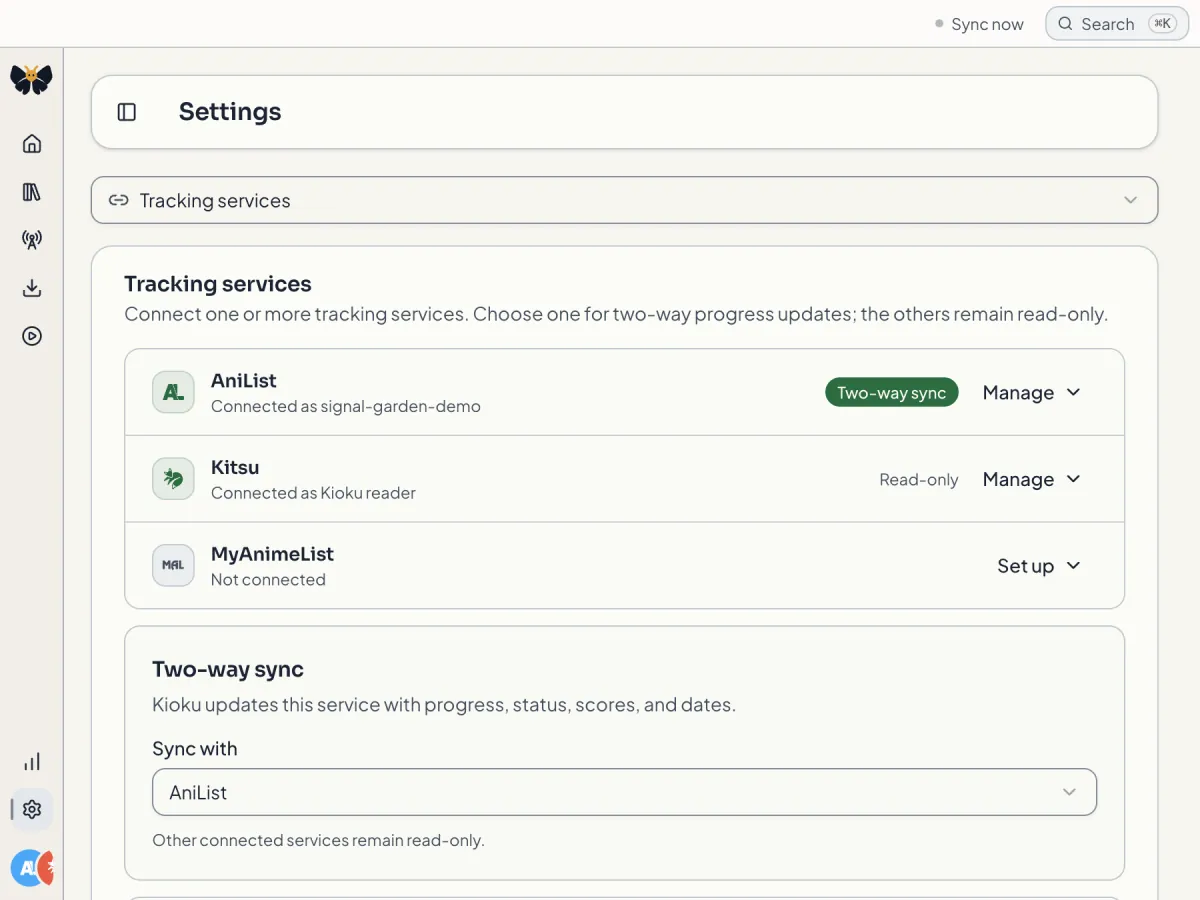
Conflict policy decides what happens when both sides changed: Use the most recent update (recommended), Keep local changes, Use service changes, or Ask every time. Conflicts waiting for you appear under Needs attention on Home.
Connecting the two-way service starts a reconciliation that also pulls its list into your library. The setup assistant's Review step offers Import from as the explicit, reported version of that pull. Either way it is one-way into Kioku and sends nothing back, and read-only services are never pulled. Reopen the assistant later from Settings → Setup and troubleshooting → Open setup assistant.
Replace, remove, or repair credentials
- Replace credentials opens the form again with empty fields; saving overwrites both the client ID and the encrypted secret.
- Remove credentials deletes both. Connecting is disabled until you set up a client again.
- Both appear on a card that is set up but not signed in. A connected card shows Refresh list preview and Disconnect instead, so disconnect first if you need to change credentials.
- Expired Kitsu or MyAnimeList sign-ins can be refreshed with Check service sign-ins under Settings → Data and backups → Tracking service sign-ins. AniList does not issue refresh tokens, so an expired AniList sign-in asks you to reconnect.
If you suspect a secret was exposed: remove the credentials in Kioku, regenerate the secret on the developer page (AniList: delete and recreate the client; MyAnimeList: edit the app and reissue the secret), then enter the new values.
If sign-in is rejected
- AniList rejected this API client. Replace the saved Client ID and Secret as one matching pair, then check that the client's redirect URL is exactly the one Kioku shows.
- MyAnimeList rejected this API client. Replace both credentials and confirm the app is an approved web app with the redirect URLs entered exactly as shown.
- Kitsu did not accept these sign-in details. Re-enter your email and password.
- Couldn't open your browser. Try again; Kioku finishes sign-in through your default browser and the
kioku://link it sends back. - On Linux, saving credentials needs a working secret service such as GNOME Keyring or KWallet. Without one Kioku refuses to store them rather than saving them unencrypted.