Two ways to find releases
Kioku looks for releases along two complementary paths:
- RSS feeds pick up newly published items while the feed still lists them. This is how new episodes arrive.
- On-demand search asks a Torznab-compatible indexer service for older episodes and titles that never appeared in a feed. Prowlarr is the recommended way to run one.
Prowlarr is a separate application. Kioku does not bundle, install, or update it, and never downloads anything on its own during a search. Results you search for are never downloaded silently; only the automation modes described below can queue work without a click.
Results appear in three places:
- A title's Episodes tab shows every matched release under its episode, with the source it came from, resolution, codecs, size, and how many peers are sharing it.
- The Releases page lists RSS arrivals and a review queue for candidates Kioku could not match on its own.
- The Watchlist tab tracks titles you have asked Kioku to follow.
RSS feeds
The setup assistant can add the curated SubsPlease 1080p feed. Manage feeds afterwards in Releases → Sources: add your own feed URL, enable or disable a feed, choose how often it is checked, and read each feed's health status. A failing feed also appears under Needs attention on Home.
Feed items are matched to library titles by parsing the release name. A candidate that matches exactly is attached to its episode. One that cannot be matched deterministically shows Match issue in the review queue and waits for Resolve, whose dialog can also ignore the release. Kioku never auto-downloads an ambiguous result.
Connect Prowlarr
Open Releases → Sources → On-demand search and choose Install or connect Prowlarr. The same card appears in the setup assistant.
- Install and start Prowlarr if you have not already. The dialog links to the official download for macOS, Windows, and Linux; downloads open in your browser, and Kioku never installs another application for you. The local default address is
http://127.0.0.1:9696, and Kioku shows Prowlarr found locally only when Prowlarr's own status endpoint replies there with a healthy result. - On Prowlarr's Authentication Required screen, set the method to Forms (Login Page), keep authentication required, and create a username and password. These stay in Prowlarr.
- If Prowlarr opens its Add Indexer catalogue, close it. In Kioku choose Open Prowlarr settings, copy the API key from Prowlarr's Settings → General, and paste it into Kioku. Keep the key in its own field; a URL with the key inside is rejected.
- Leave Allow private network access enabled for a Prowlarr on this computer or your LAN. Turn it off only for a public HTTPS address.
- Choose Add Nyaa.si. Kioku uses Prowlarr's own template to create or re-enable the public Nyaa.si indexer, imports its search endpoint, and verifies that search works. No indexer account is needed. To use other indexers you already have in Prowlarr, choose Choose existing indexers instead; only Nyaa.si is preselected.
Prowlarr must be running whenever Kioku searches. RSS monitoring keeps working without it. On macOS, Start Prowlarr with Kioku opens a Prowlarr.app from your system or home Applications folder after Kioku launches, unless one is already running. It is off by default, the switch only appears for a Prowlarr on this computer, and Kioku never quits it for you. Every source keeps a Test action that performs a fresh search-capability check.
Add a Torznab source manually
For Jackett or another compatible service, use Add manual Torznab source under On-demand search. Give it a name, the per-indexer Torznab endpoint, the API key in its own field, and, for a localhost or LAN address, explicit private-network permission. The endpoint must be HTTP or HTTPS, and Kioku rejects URLs that embed usernames, passwords, keys, or tokens.
Search for a title
Once an on-demand source is enabled you have two ways to search:
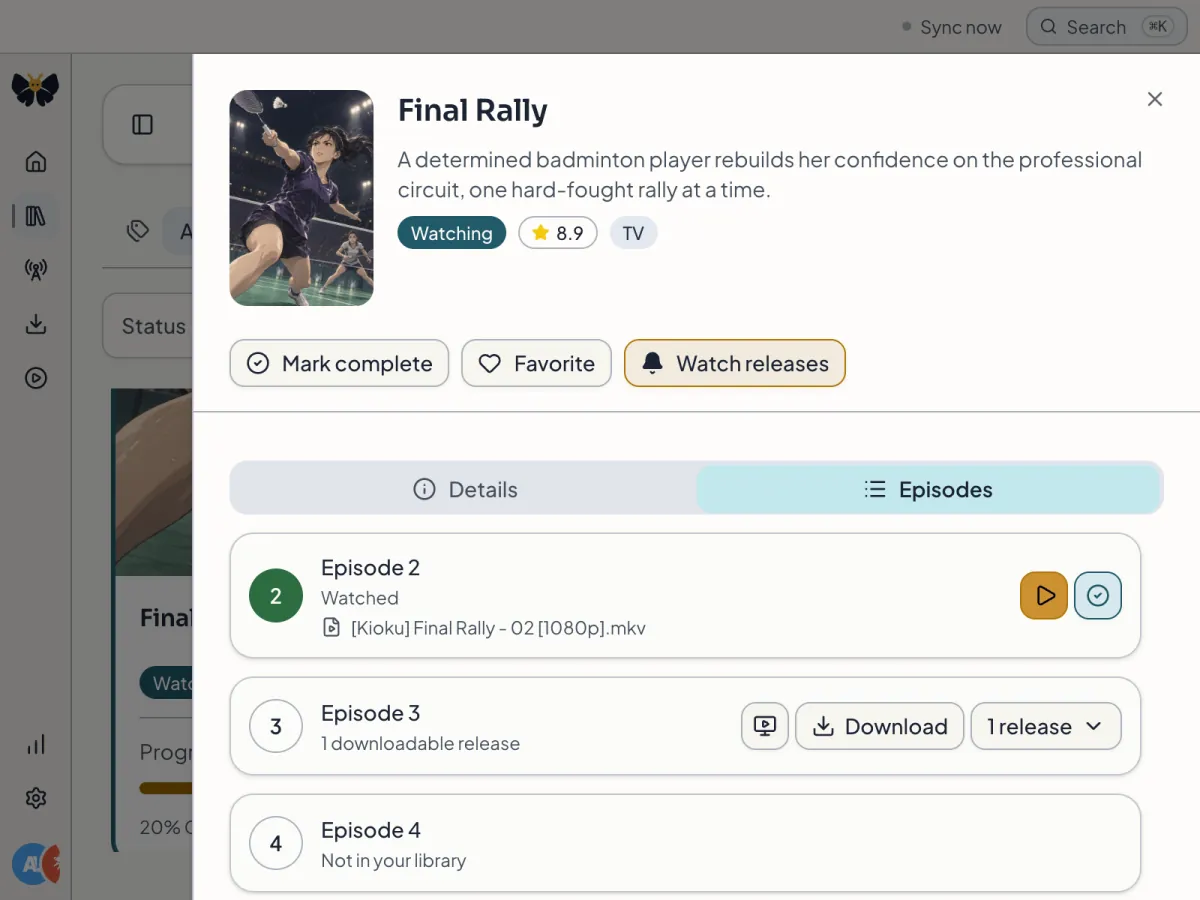
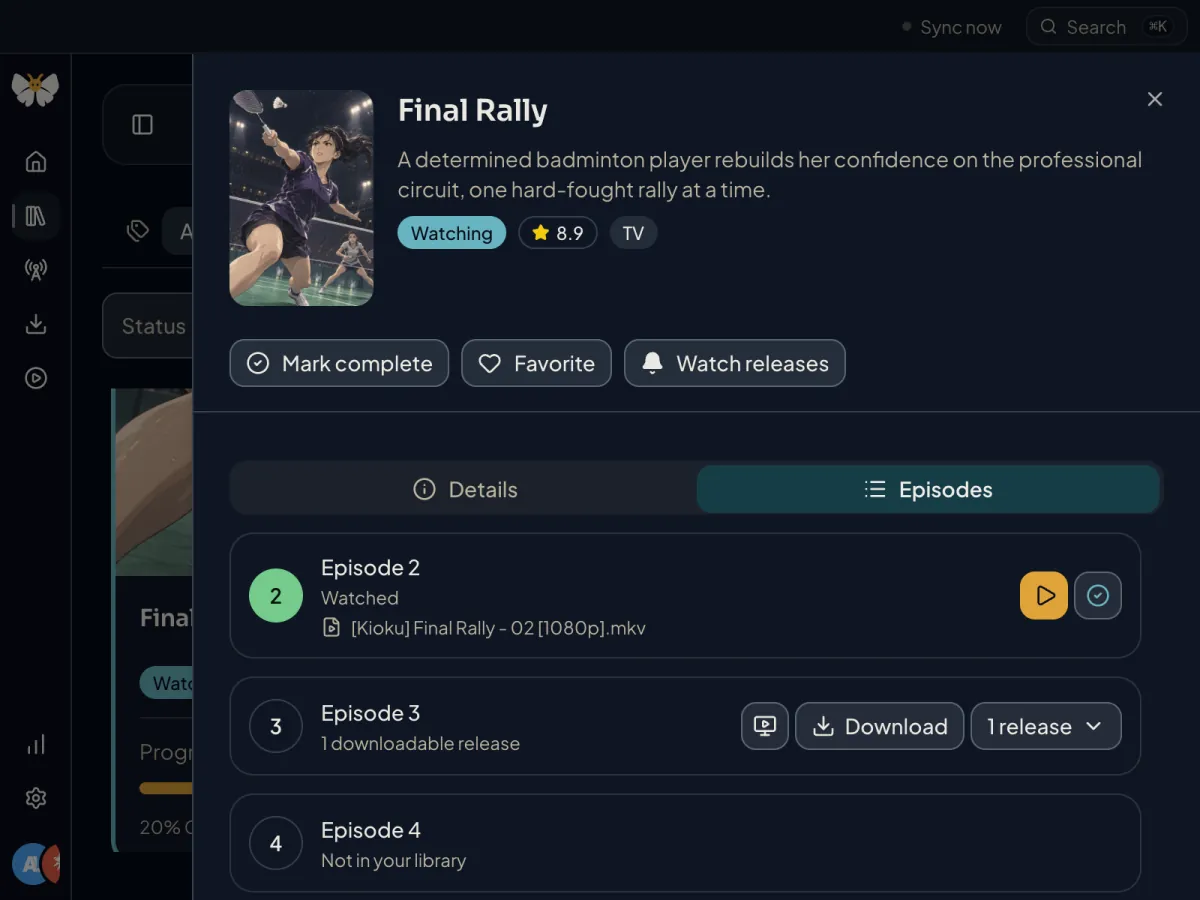
- Open a title and switch to its Episodes tab. Kioku loads what it already knows and refreshes a stale search automatically. Each episode has its own Search releases action, and Refresh releases forces a new title search.
- Choose Search missing releases under On-demand search for a library sweep. It prioritises titles marked Watching, then Plan to watch, searches at most ten titles per run, and reports what is left for the next run.
Results under an episode show the source they came from, resolution, codecs, size, and how many peers are sharing, with the recommended Best match first and the rest ordered by peers. Download sends one to your download client; anything that is not an exact match asks for confirmation first. A release Kioku matched only because you searched for that specific title is marked as matched from your search rather than treated as certain.
Watch a title for releases
Turn on Watch releases in a title's detail panel, beside Favorite, or add a title from Releases → Watchlist. Watched titles persist across restarts. New exact episode or season-pack matches from your feeds appear in the Watchlist without an indexer search, and Kioku can show a system notification for them.
Find existing releases runs a bounded on-demand search for older episodes of a watched title. Each entry summarises its state as Monitoring, Available, Queued, Downloading, Downloaded, or Needs attention, with View episodes to open the title and, when there are unmatched candidates, Review with their count. Stopping the watch removes only the watch itself, never candidates, downloads, imported files, or the title.
Automation, next seasons, and upgrades
Settings → Automation sets the release automation mode. Browse only refreshes Releases without queuing anything. Ask first sends exact, preferred, single-episode candidates to Needs attention for your approval. Automatic sends that same safe set to Downloads after a short delay. Ask first and Automatic need a working download client; see Download clients. Batches, episode ranges, out-of-range episodes, match issues, and episodes you already have on disk are never queued automatically.
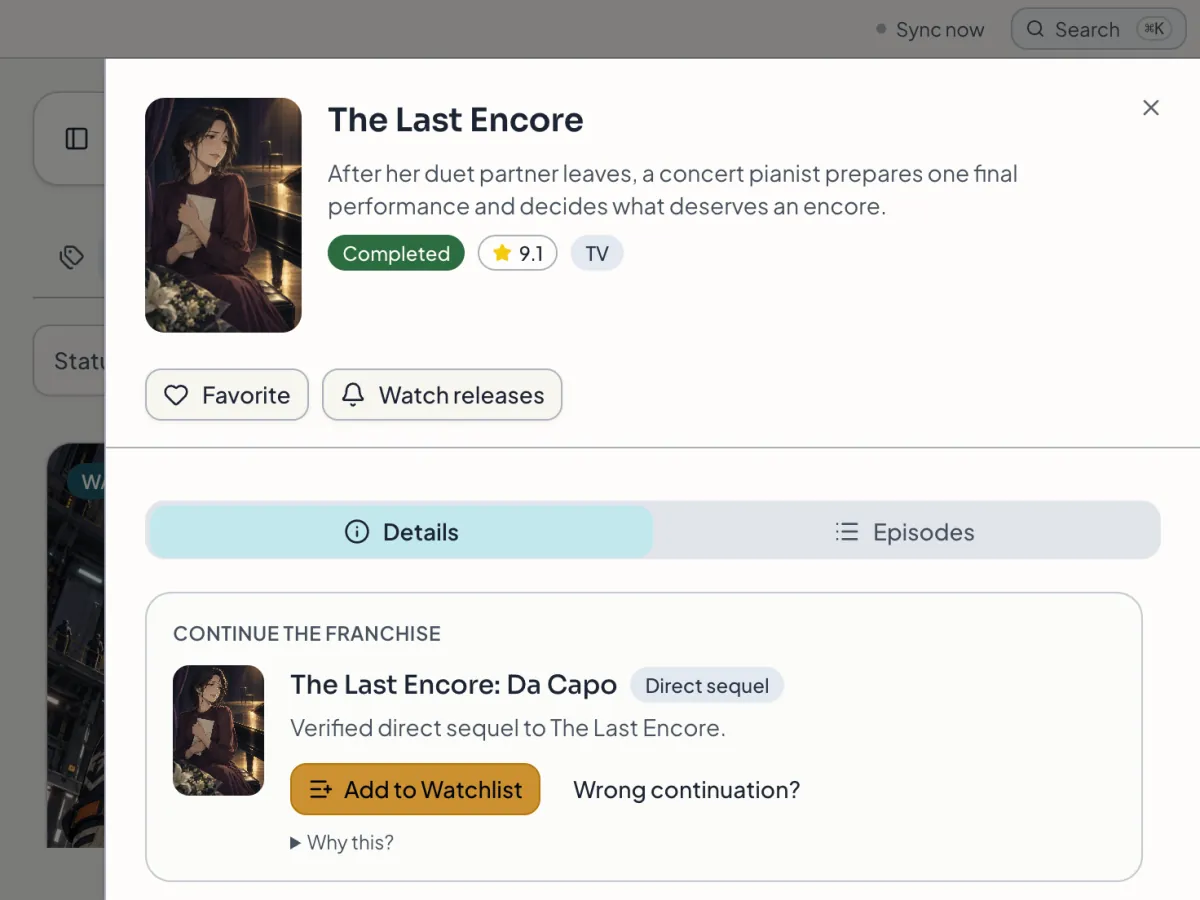
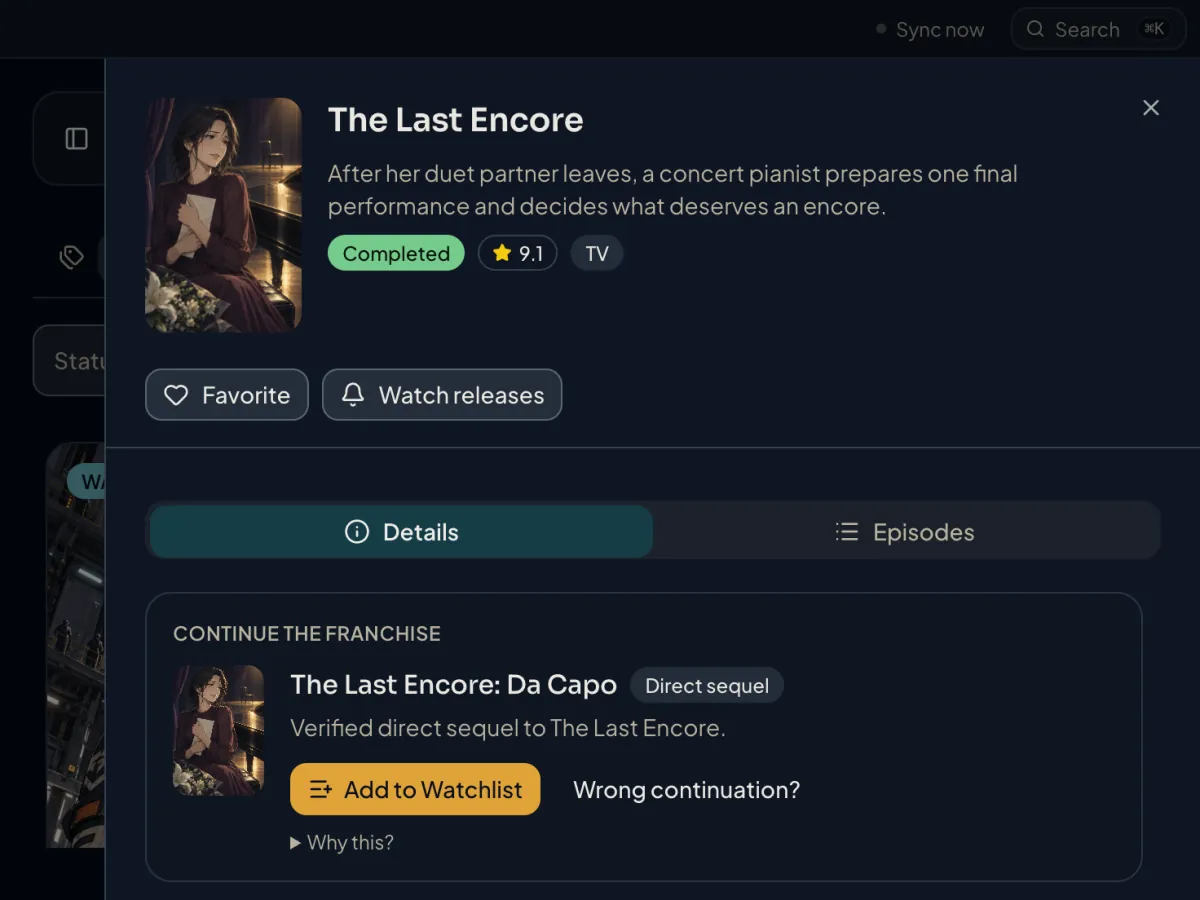
When a completed title is linked to a tracking service and has a verified direct sequel, its Details show a Continue the franchise card with Play sequel, Find release, or Add to Watchlist. If the relationship is ambiguous, Kioku asks you to choose rather than guessing.
The Collector upgrades tab on Releases is a report of episodes whose owned file could be improved under your release preference, for example a better resolution or preferred release group. It is report only: nothing is downloaded or removed until you act on a row, and it never deletes media.
What Kioku keeps
Cached search results are bounded. When every source in a search succeeds, older unmatched or ambiguous candidates for that title that did not come back are dropped, and a daily sweep deletes unmatched or ambiguous candidates untouched for 30 days. Neither pass touches a matched release or a candidate a job or download refers to, though a separate cap of 5,000 stored candidates per source can still drop the oldest rows. Removing a source deletes its stored API key and cached candidates but leaves downloaded files on disk.