Where your data lives
Everything stays on your computer; there is no Kioku account and no cloud copy. Inside Kioku's application data folder (on macOS, ~/Library/Application Support/Kioku) you will find:
kioku.db, the SQLite database with your titles, episodes, progress, folders, feeds, release sources, candidates, downloads, and playback positions.backups/, the automatic backups described below.logs/, the current and previous application log, each capped at 5 MiB.secure-tokens.json, the encrypted credential store for client secrets, tokens, release source API keys, and qBittorrent credentials. It is encrypted with a key your operating system's keychain holds, which never leaves the device.- Plain settings such as preferences and OAuth client IDs.
Your anime files stay in the library folders you chose, and WebTorrent downloads go to ~/Downloads/Kioku by default. Do not edit the database while Kioku is running.
Automatic backups and housekeeping
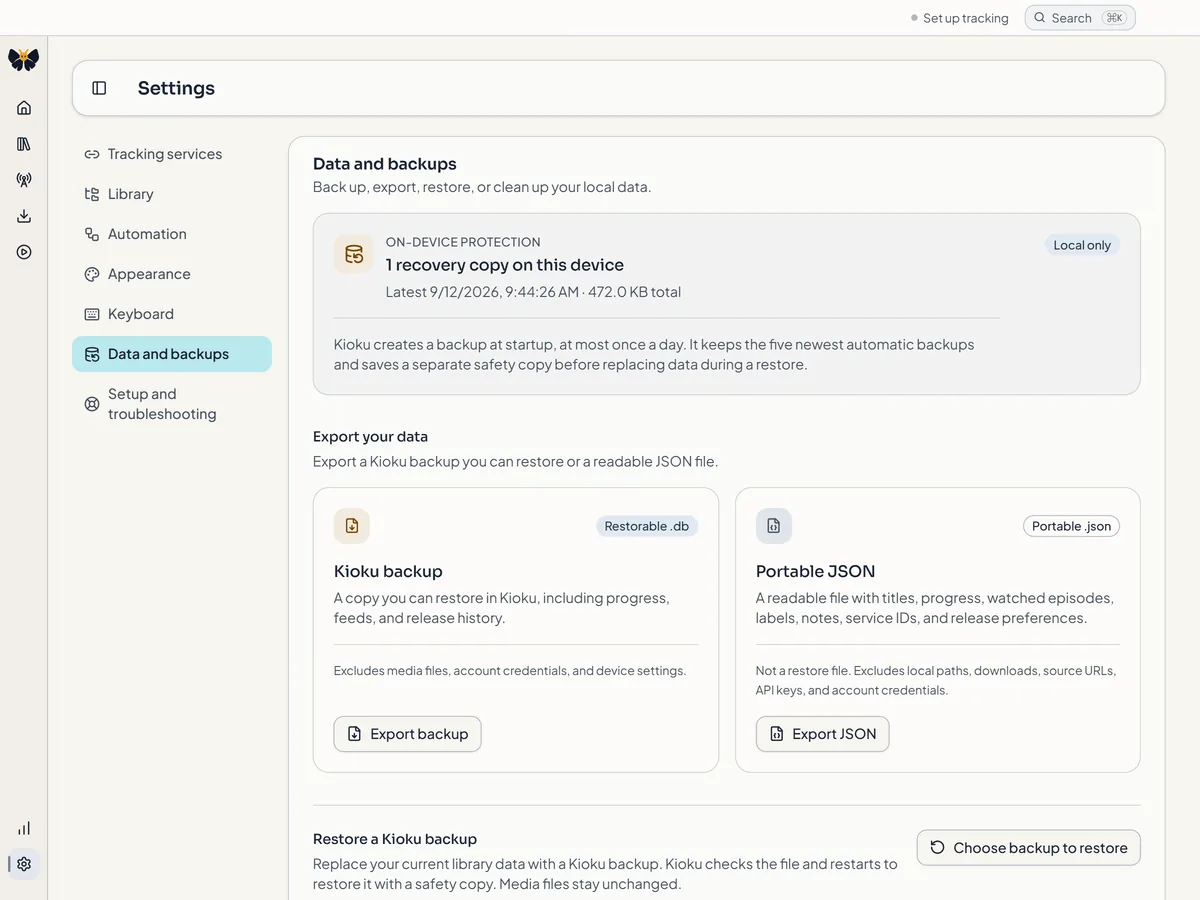
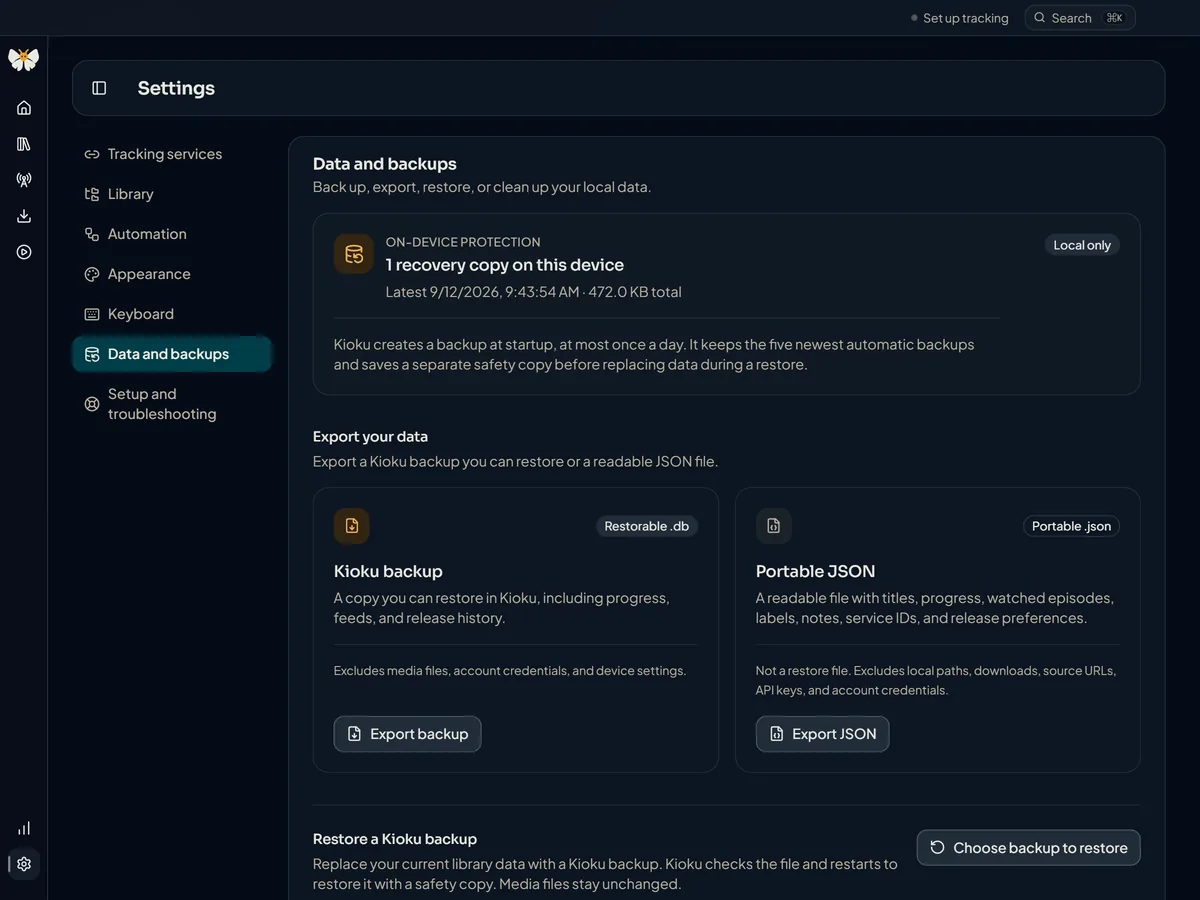
Kioku creates a backup at startup, at most once a day, and keeps the five newest automatic backups. It also saves a separate safety copy before replacing data during a restore (the three newest are kept) and a snapshot before a database upgrade (the two newest are kept).
Housekeeping runs shortly after launch and then every 24 hours while Kioku stays open. Each run checks the database's integrity, creates a backup when the newest one is old enough, trims old backups, and runs SQLite's optimizer. An integrity problem skips that run's backup so a bad state never displaces a healthy one, and housekeeping never deletes library data. Settings → Data and backups → Storage and maintenance shows the latest run and lets you start one with Run maintenance.
Export your data
Settings → Data and backups → Export your data offers two files:
- Export backup saves a restorable
.dbcopy (namedkioku-library-YYYY-MM-DD.db) including progress, feeds, and release history. It excludes media files, account credentials, and device settings. - Export JSON saves a readable file with titles, progress, watched episodes, labels, notes, service IDs, and release preferences. It is portable, not a restore file, and excludes local paths, downloads, source URLs, API keys, and credentials.
Restore a backup
Choose backup to restore replaces your current library data with a Kioku backup. Kioku first checks that the file is a healthy Kioku database from this version or older; a file that is not a supported backup, or one from a newer Kioku, is refused and your current library is kept. Then it restarts, checks the backup again, saves a safety copy of the current database, and restores it before opening your library. Media files are never changed.
If the restore fails partway, Kioku puts the previous library back. Changes you made after the backup was taken are not in the backup, so export a current backup first if you might want them.
If the database cannot be opened
Kioku checks the database every time it starts. If the file is damaged, Kioku renames it (nothing is deleted) and restores the newest backup that passes its integrity check, then tells you: Library restored from a backup, naming the backup used and the file it kept. Changes made after that backup may be missing. The diagnostics export records that a restore happened this session.
If no backup can be restored, Kioku shows Kioku could not open your library and quits without deleting anything. Restart it; if the problem continues, keep the application data folder, save diagnostics, and restore a backup you exported. Never delete the kioku.db-wal or kioku.db-shm files by hand.
Cleanup and health checks
Everything under Storage and maintenance is preview-first or report-only:
- Old activity cleanup can remove completed imports, ignored releases, and feed items you already hid, older than 30, 90, 180, or 365 days. Preview cleanup shows exact counts, and the removal creates a backup first. Downloads, library history, sign-ins, media files, failed releases, and releases awaiting review are never touched.
- Check library files compares Kioku's episode list with your folders and reports files missing from disk, untracked videos, files awaiting review, failed imports, shared files, ambiguous aliases, conflicts, and folders it could not read. It can be cancelled, skips symbolic links, and changes no files. The scan is bounded, so a very large library can return a report marked incomplete rather than a full one.
- Verify exact duplicates runs the same check after hashing your files, so identical copies are listed. Kioku never deletes or merges them.
- Check service sign-ins refreshes expired Kitsu and MyAnimeList sign-ins; see Connect a tracking service.
Uninstalling
Deleting Kioku from Applications leaves your anime files, your downloads, and the application data folder in place. Export a backup before removing that folder if you might come back; Kioku has no remote copy to restore from. The privacy policy describes every request the app makes.