Home
Home is the resume screen. It shows:
- Up next: the episode Kioku thinks you should watch next, with Resume when a saved position exists, Play episode when the next episode is on disk, or Find episode when it is not.
- Continue watching: up to twelve titles with a saved position, newest first and one card per title. Each card resumes at the saved time, and a card can be hidden and restored.
- Airing schedule: episodes that aired in the past 48 hours or air in the next seven days for library titles matched to AniList or MyAnimeList. It refreshes every 15 minutes and when Kioku regains focus, and uses AniList's public airing data whichever service you sync with.
- Recently watched: your latest watched titles.
- Needs attention: download errors, failed release handoffs, failed sync changes, failing release sources, files that need matching, downloads with files to review, and sync conflicts. Each item opens the place where you can fix it.
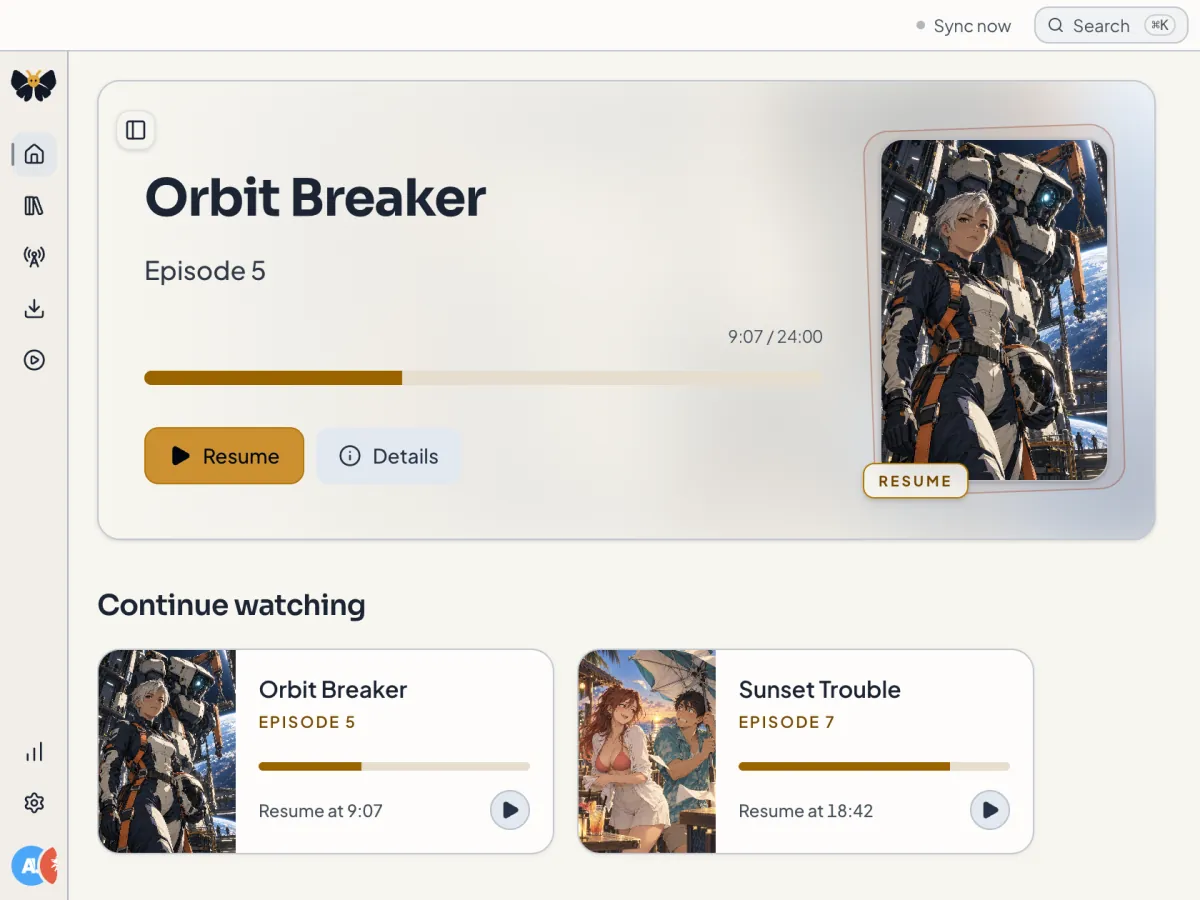
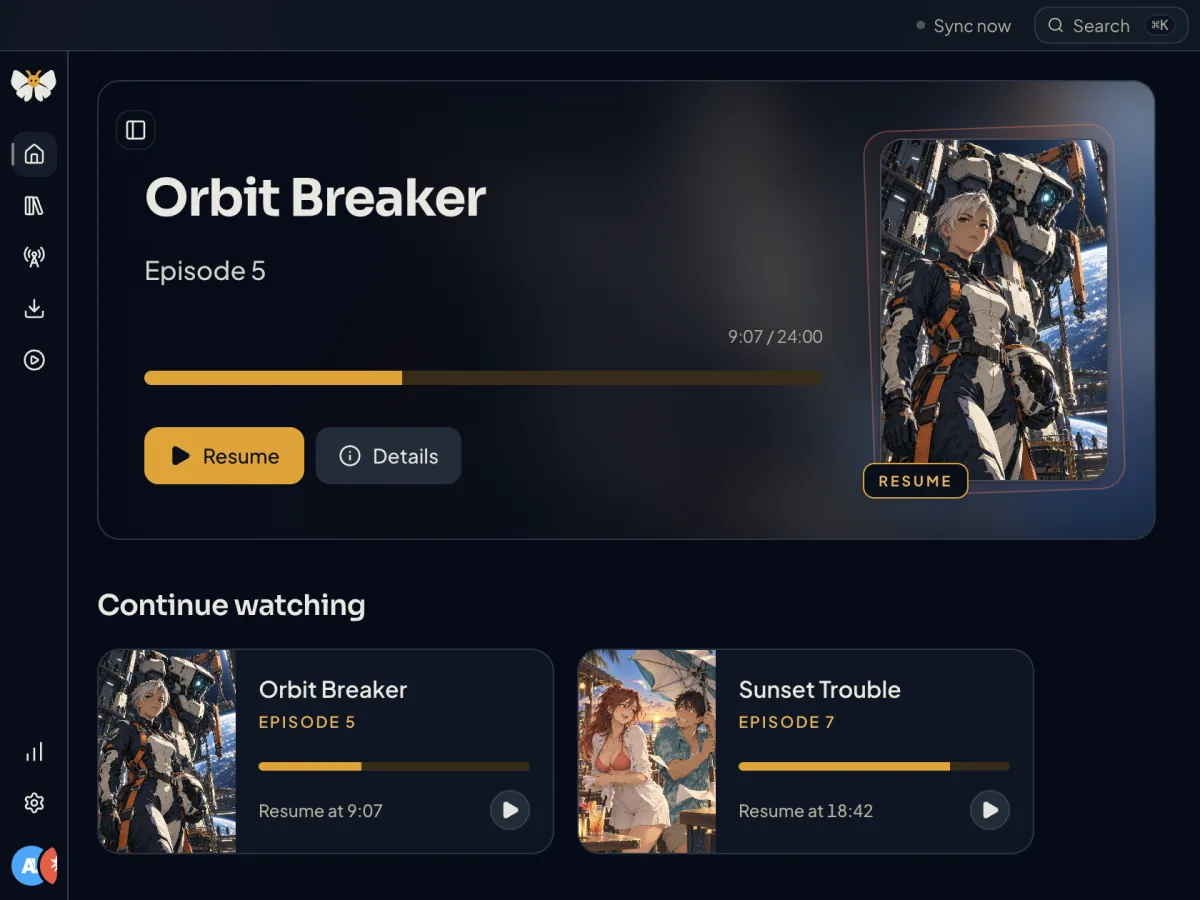
Before anything is set up, Home shows a single next step instead: add a library folder, scan a folder that has no anime yet, or mark a title as Watching.
Library folders and scanning
Open Library, then More actions → Manage folders. Add folder registers a folder and scans it immediately; you can also drop a folder onto an empty library. Removing a folder stops monitoring it and never deletes the files inside.
Scan library in the same menu, or Mod+Shift+R, re-scans every folder. A banner reports files scanned, added, updated, and errors while it runs, with Cancel scan if you need to stop. Kioku also watches folders for new files between scans; if watching fails you see a warning that new files may not appear until the next scan.
Kioku recognises episodes from their filenames. Files it cannot place confidently go to file review rather than being attached to a title by guesswork.
Match uncertain files
When files need help, a Review button with a count appears in the Library header; when nothing is waiting, the same sheet opens from More actions → Review files. The sheet explains why each file is uncertain, for example a title that could not be read, a missing episode number, or a filename that could match more than one local title, and offers local suggestions rated as exact, strong, or possible matches.
Pick the files, choose Match to a title and an episode number, and confirm with Match file, or Match 3 files for a batch. Nothing changes until you confirm. Files can only be matched to titles already in your library, so add or link the title first if it is missing.
Statuses, filters, labels, and bulk actions
Every title has a status: Watching, Completed, On hold, Dropped, Plan to watch, or Not set. The status bar filters the library, Sort orders it by title, progress, status, score, or recent updates, and Filters adds type, year, season, and your score once titles have catalog details. Favorites narrows the view to titles you have favourited from a card's menu.
A title's Personal organization section holds private notes and comma-separated labels. Labels become shelves above the library grid so you can jump to, say, everything tagged Rewatch. Notes and labels stay on this device and are included in Kioku's backups and exports.
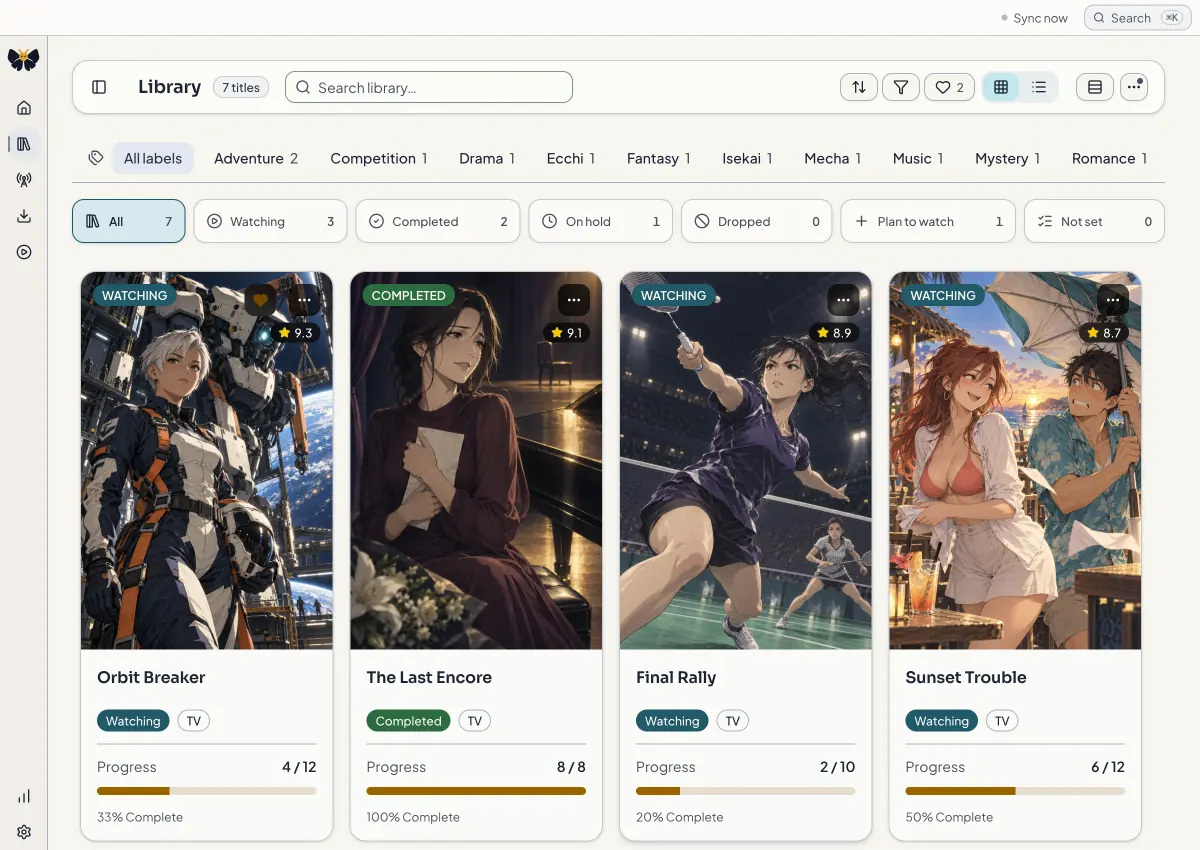
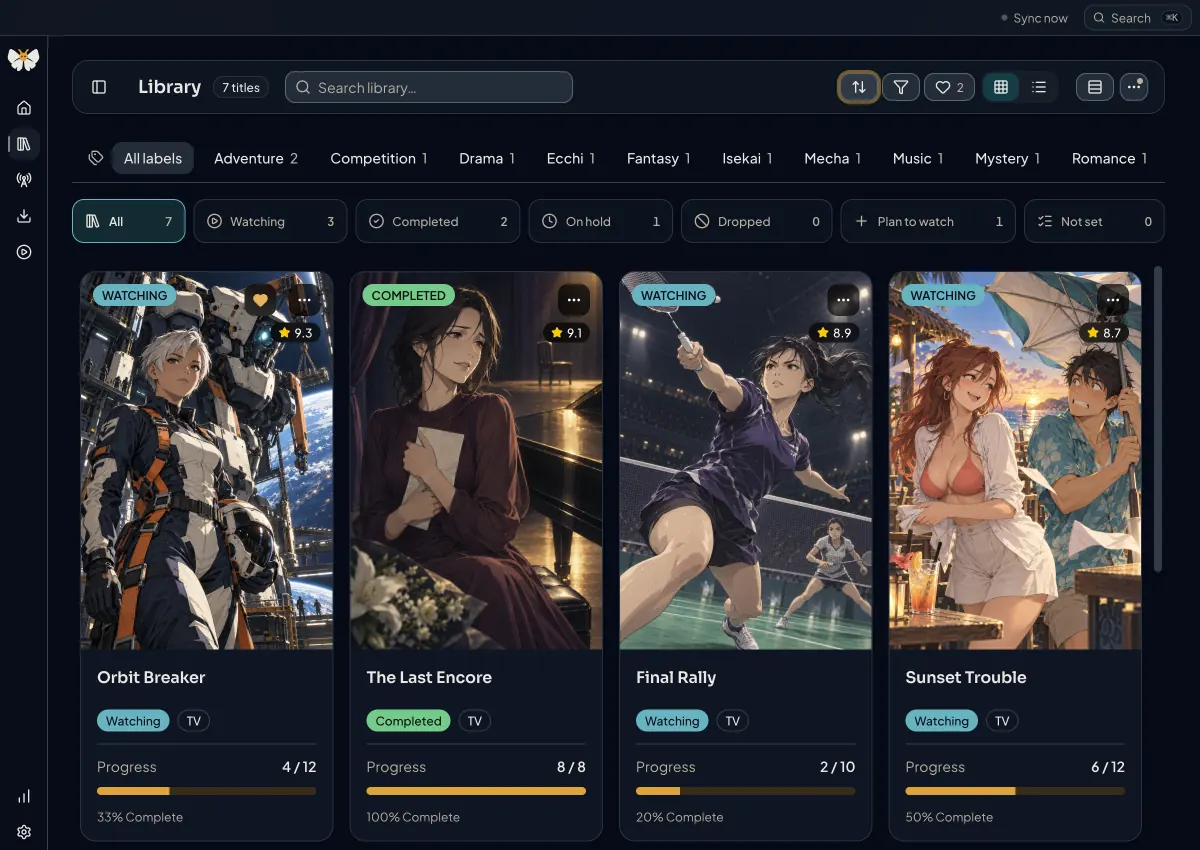
Turn on Selection mode from More actions to select several titles, then change their status together or choose Remove titles. Removing a title from the library does not delete your files.
Progress
Finishing an episode in Kioku marks it watched, and each episode row also has Mark watched or Mark unwatched. If you watched elsewhere, open the title's Details tab, set Watched through episode, and choose Save progress. Kioku continues from the following episode and syncs the count when a two-way tracking service is connected; see Connect a tracking service.
Catalog details
A title's cover, synopsis, episode count, and airing schedule come from a catalog match on AniList, Kitsu, or MyAnimeList. Choose Match catalog details (or Change catalog match) in the title's Details, pick the service, search by title, and confirm with Use this match. The match is independent of the service you sync with, and changing or removing it never touches local files, progress, or saved details.
The Episodes tab
Each episode row shows one status line: Watched, Ready to watch, a download state such as Queued, Downloading, or Download stopped, Needs approval, a count of downloadable releases, a count of candidates without a usable source, or Not in your library. Local episodes offer Watch episode; missing ones offer Download when a release is known or Search releases when it is not. Chips above the list summarise local files, episodes ready to download, and active downloads.
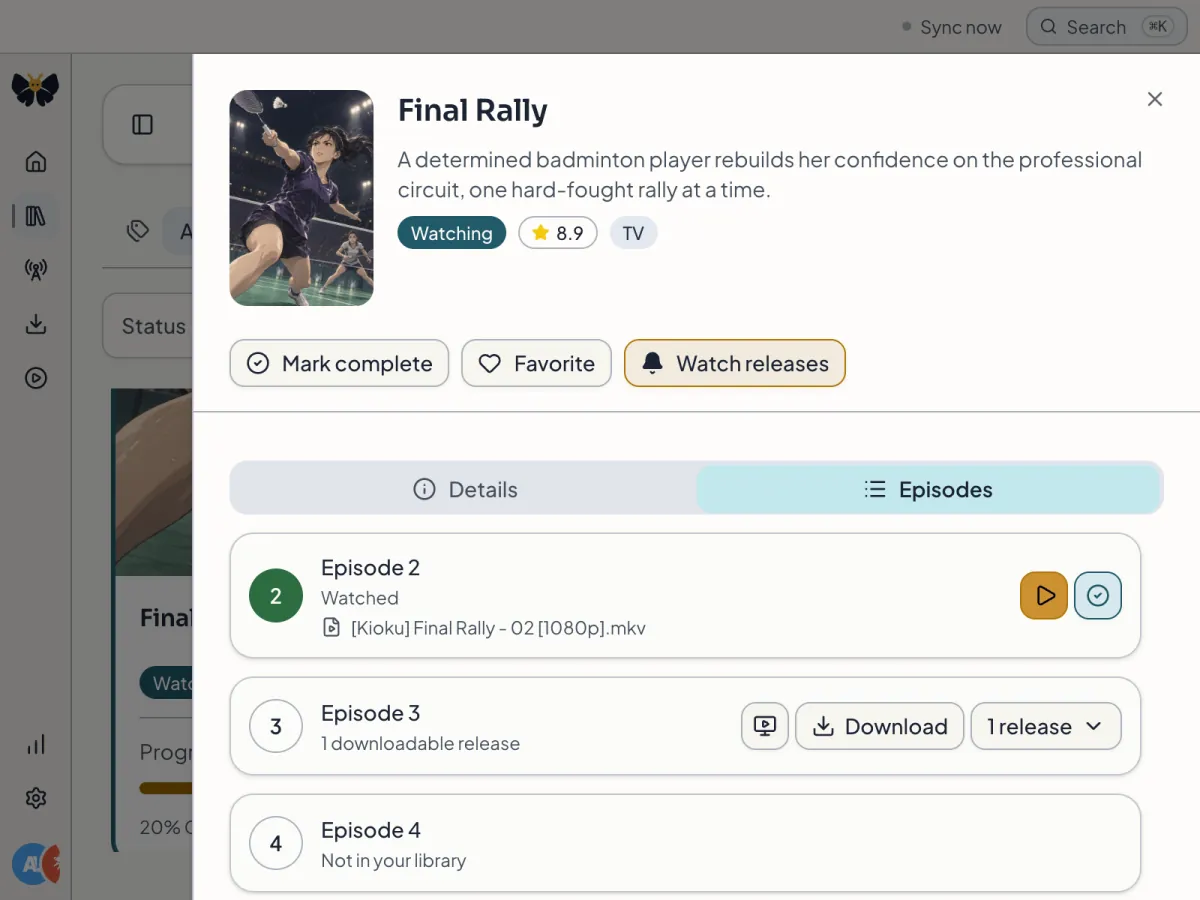
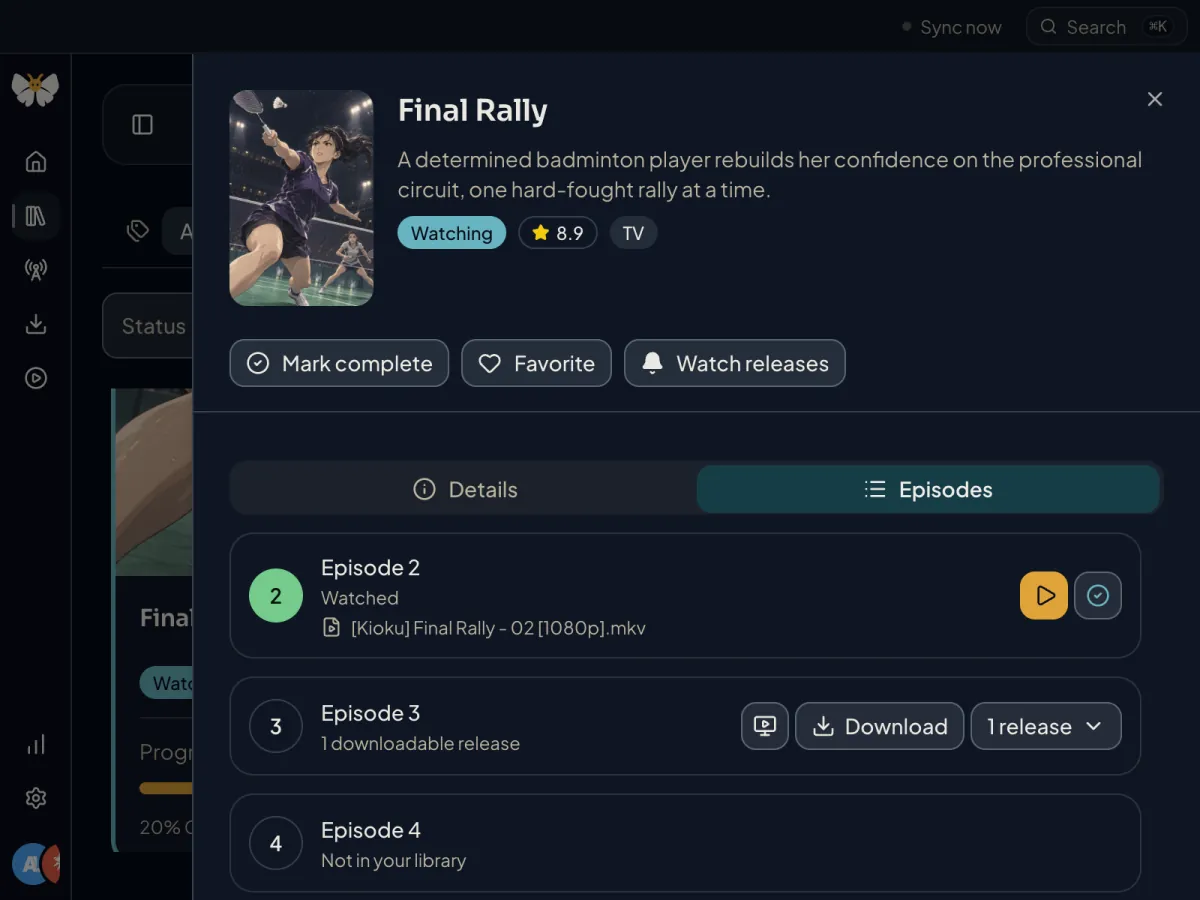
When an episode has more than one file, the row lists them with release group, resolution, and codec. Make preferred chooses which copy Kioku plays. Preview name shows the canonical library filename Kioku would use for a file; it is a preview only and never renames or moves anything.
Below the episodes, Watch next and Related media list connected series, and completed titles can show a Continue the franchise card; see Find releases.
Insights
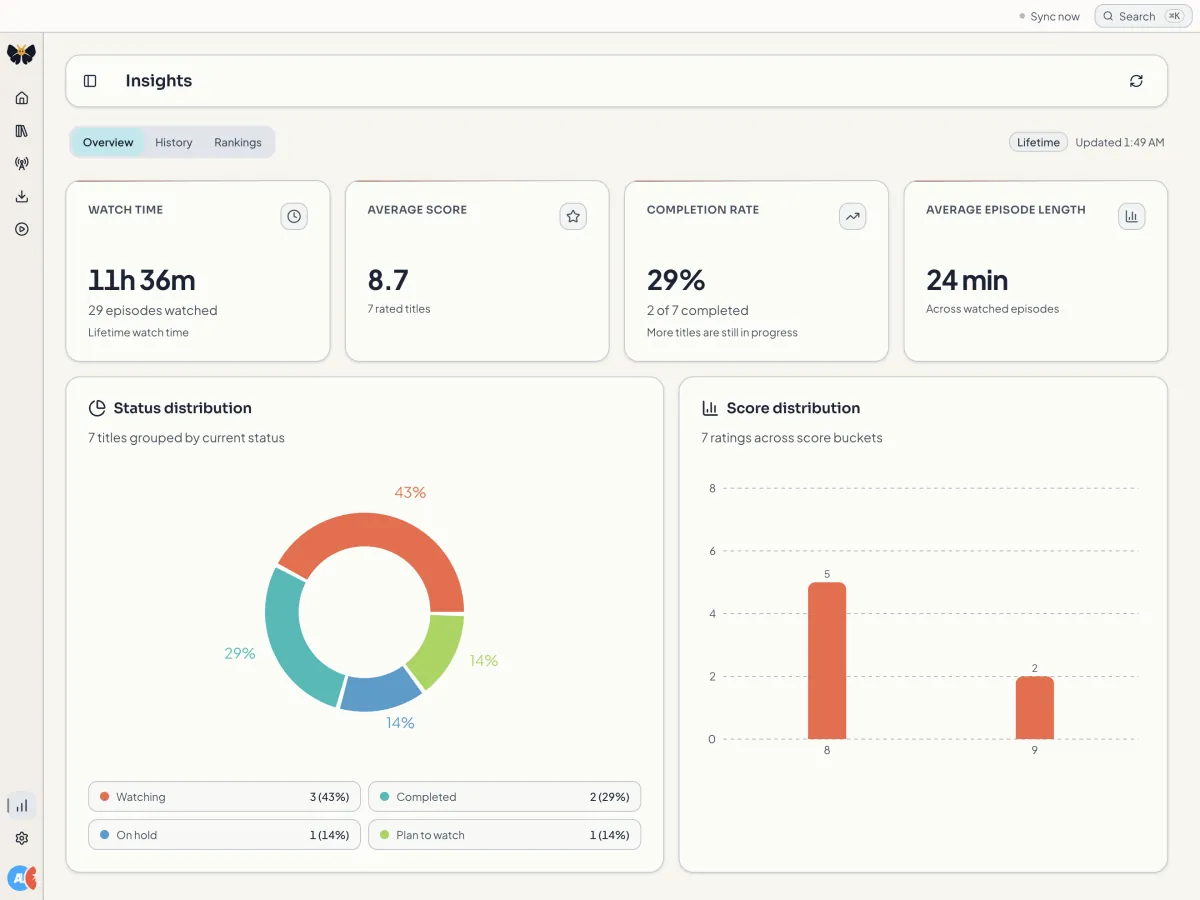
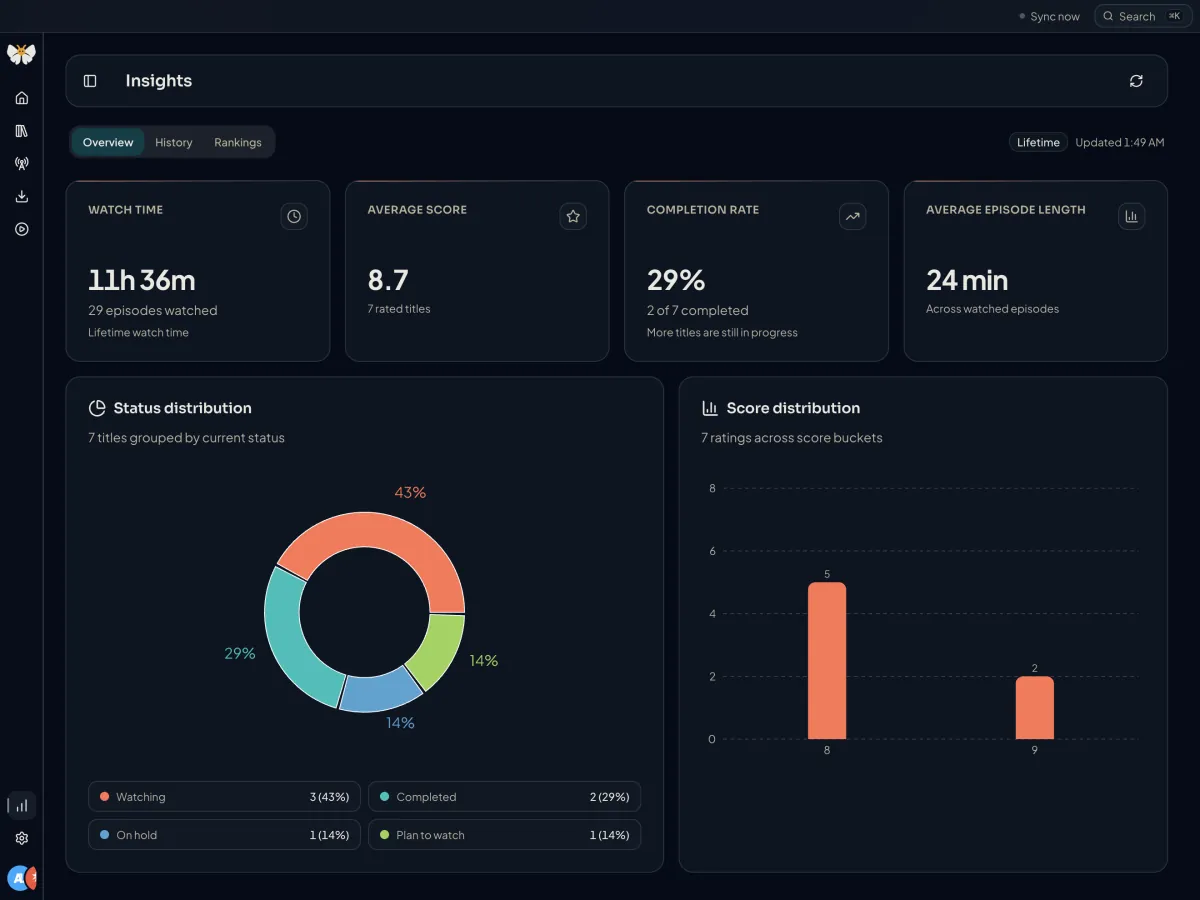
Insights has three tabs. Overview shows lifetime watch time, average score, completion rate, and average episode length, plus charts of titles by status and by score. History charts episodes watched over time for a chosen range, and Rankings lists titles ranked by episodes watched. Statistics come from watched episodes and the statuses and scores you set, so a library without statuses shows an empty state with a link back to Library.
Keyboard shortcuts and the command palette
Press ? anywhere to open the shortcut list, or read it under Settings → Keyboard. Mod means ⌘ on macOS and Ctrl elsewhere.
Mod+K opens the command palette, which searches your library and runs commands such as Scan library and Check feeds.
Global
- ? Show keyboard shortcuts
- Mod+K Open command palette
- Mod+B Toggle sidebar
- Mod+Shift+R Scan library
- / Focus the search field on the current page
- Esc Close dialog or cancel the current action
- Alt+T Focus notifications to act on or dismiss them
- F6 / Shift+F6 Move between major application regions
Library
- Arrow keys Move focus within the library grid
- Enter / Space Select the focused card
- Shift+F10 / Menu Open actions for the focused card
- Home / End Jump to the start or end of the current row
- PageUp / PageDown Jump by a page of rows
- Mod+Home / Mod+End Jump to the first or last card
Command palette
- Up / Down Navigate items
- Enter Run the highlighted command
Navigation
- Mod+1 … Mod+6 Go to Home, Library, Releases, Downloads, Now playing, Insights
- Mod+, Go to Settings
- Left / Right Move between tabs on pages that use a tab bar