Choose a client
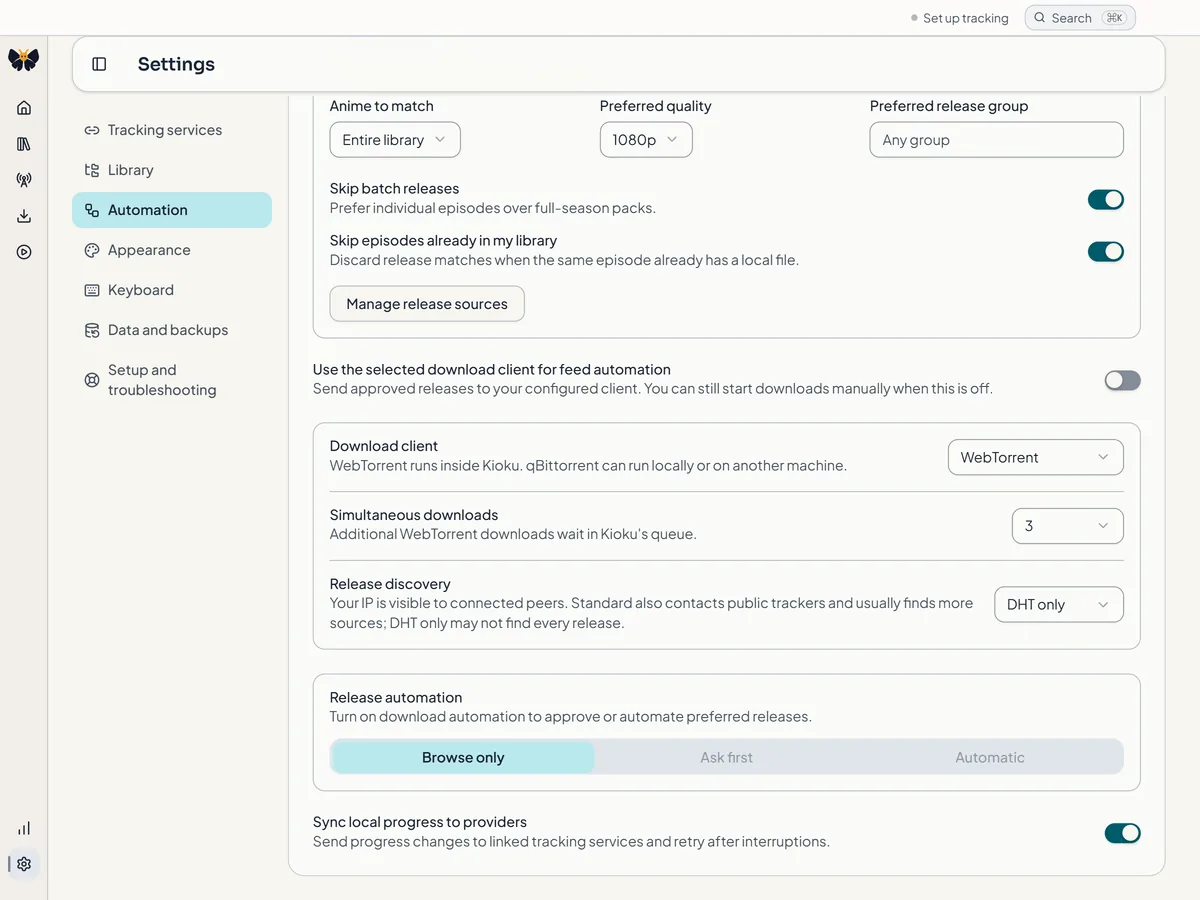
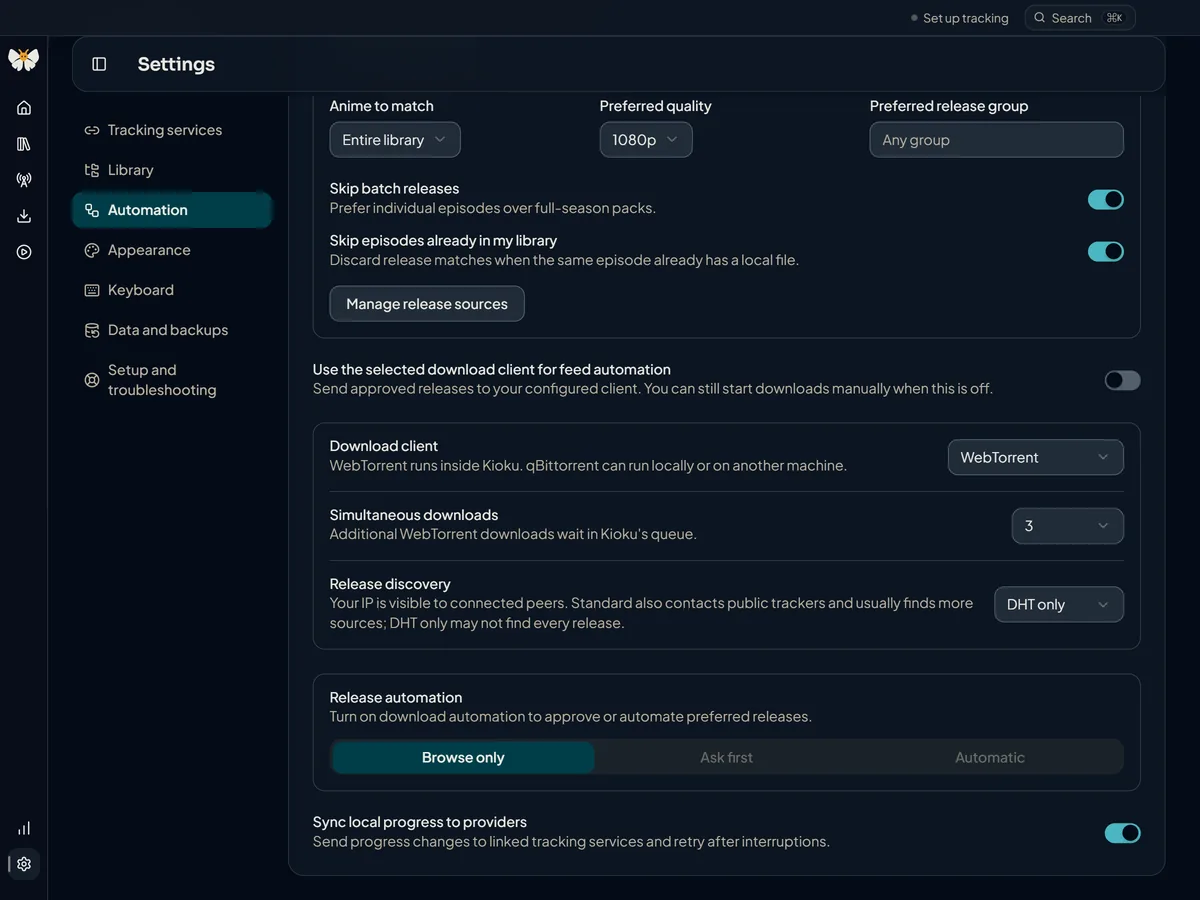
Open Settings → Automation → Download client. WebTorrent runs inside Kioku and is the default; qBittorrent can run on this computer or another machine. Release discovery is the same either way: feeds and searches find candidates, and the selected client owns the transfer.
- WebTorrent: Kioku owns the queue, download folder, transfer, and optional seeding. Best for a simple single-computer setup.
- qBittorrent: qBittorrent owns queue order, concurrency, trackers, and seeding. Kioku lists and controls only torrents in its own category. Best for an existing seedbox, NAS, Docker, VPN, or long-running seeding setup.
Changing the client is saved immediately but takes effect after you restart Kioku; the settings show which client the current session still uses. Pause or remove Kioku's qBittorrent downloads before switching clients, and remove them before changing the endpoint or category, because those settings define which torrents Kioku considers its own.
Only download or share content you are legally allowed to use.
Built-in WebTorrent
Simultaneous downloads sets how many transfers run at once (three by default, from one to ten). Extra downloads wait in the queue, show their position, and start when a slot opens.
Release discovery decides how peers are found. DHT only skips public trackers and peer exchange, so some downloads may not start. Standard (recommended) adds peer exchange and a small curated list of public trackers, which usually finds more sources. With either setting your IP address is visible to the peers you connect to; Standard also shares it with those public trackers, including for background and automatic downloads.
Kioku asks once, when you start your first download: Choose peer discovery with Use Standard or Use DHT only. Closing the dialog keeps DHT only and records the decision. You can change it anytime in Settings; switching to Standard there shows the same disclosure once. A download that cannot find sources under DHT only offers Enable Standard discovery inline.
Connect qBittorrent
qBittorrent must already be installed, running, and reachable. Kioku does not install, start, stop, or update it.
- Enable qBittorrent's Web UI and create a dedicated username and password for Kioku.
- In Settings → Automation, choose qBittorrent as the download client.
- Enter the Web UI endpoint, for example
http://127.0.0.1:8080, without credentials, a query, or a fragment. - Turn on Allow private network addresses for localhost, home-server, Docker, and private VPN addresses. Leave it off for a public HTTPS endpoint.
- Keep the Owned category
kiokuor choose another unique category. Kioku never adopts torrents outside it. - Fill in both path-mapping fields if qBittorrent and Kioku see the same files at different paths, or leave both empty; see below.
- Enter the username and password and choose Save credentials, then Test connection. A successful test reports the qBittorrent and Web API versions without showing the saved values.
- Restart Kioku to activate qBittorrent.
Credentials are stored with operating-system encryption and are never shown again on that screen. The signed-in session stays in Kioku's main process and is not exposed to the interface.
Remote path mapping
When both applications see one shared folder at different paths, map the qBittorrent-visible root to the path Kioku can read. For example, Remote download root /downloads and Same files visible to Kioku at /Volumes/Media/downloads turn /downloads/anime/episode.mkv into /Volumes/Media/downloads/anime/episode.mkv.
Provide both roots or neither. Leave both empty only when qBittorrent already reports paths that are valid on the computer running Kioku. Kioku has to read the finished file through its own filesystem to play it or add it to the library, and it rejects paths outside the remote root, traversal segments, and mappings that escape the local root.
Completion and library import
When a download completes, Kioku records import work for each video and can attach the result to the matching episode; you see Download complete and then Added to library. Kioku hard-links the file when the download and library are on the same filesystem and copies it across filesystems. Moving is refused for qBittorrent downloads because removing the source would break seeding.
If an import fails, the download shows Library import needs attention with Retry library import and Review library match. Removing a download from Kioku never deletes files unless you explicitly opt in; see The Downloads page.
Troubleshooting
- The connection test is rejected. Confirm the Web UI endpoint, the dedicated credentials, and qBittorrent's Web UI access settings, then save both the username and password again. qBittorrent rejected the saved credentials means the login itself failed; qBittorrent request timed out or a returned HTTP status means it could not be reached as configured.
- A private address is blocked. Turn on Allow private network addresses only when that endpoint is intentionally local, LAN, Docker, or private VPN.
- The restart notice stays. Quit and reopen Kioku; the client is chosen at startup.
- A download is in qBittorrent but not in Kioku. Only torrents Kioku added, in the exact owned category, are shown.
- The transfer completes but the import fails. Check both mapping roots, confirm the mapped local path exists and is readable, and expect a copy when hard links cross filesystems.
- No sources are found with WebTorrent. Enable Standard discovery, or choose another release. A release whose link cannot be read reports Release link invalid.