Start watching
Any of these starts playback and switches to Now playing:
- Resume or Play episode on Home, or a Continue watching card.
- Watch episode on an episode row in a title's Episodes tab.
- An episode in Now playing's Ready to play list.
- Play episode on a completed download, or Play ready file while the rest of a download continues.
Now playing shows Starting playback… while the file is handed to the player. If the file has moved or the player cannot start, you see Couldn't start this episode with Try again; scanning the library fixes a moved file.
The player
On macOS the MPV player is embedded in Now playing. The controls are play and pause, rewind and forward ten seconds, previous and next episode, a position slider, volume and mute, and full screen (Esc leaves it). Playback options holds Speed from 0.75× to 2×, the Audio track, and Subtitles, including off. The overflow menu has Stop playback and Mark watched or Mark unwatched.
The episode panel shows percentage watched and time left, a Next up card with Play episode or Find episode for the following episode, and the list of episodes on this device.
Saved positions and watched marks
Kioku saves your position every ten seconds while playing and whenever you pause or stop. A saved position appears on Home and in Continue watching once you are at least 30 seconds in, and it stops being offered once the episode is marked watched.
An episode is marked watched automatically when playback reaches the end of the file after at least 85 percent of it has played. Stopping earlier keeps the saved position so you can resume. When an episode finishes, Now playing shows Episode watched with the next episode ready to play or find. You can always mark an episode watched or unwatched by hand.
External MPV fallback
If a build does not include the embedded player, or it fails to start, Kioku plays the episode in a separate MPV window and labels the player area Playing in MPV · External player fallback. The transport controls still work through Kioku; full screen is available only with the embedded player.
The public macOS build bundles its own MPV runtime, so nothing needs installing. On Linux, and on any build without the embedded player, MPV must be installed separately; Kioku links to the MPV installation guide when it cannot play a video.
Watch while downloading
With the built-in WebTorrent client, Watch now on a release or an active download starts playing it before the transfer finishes. The first time, Kioku asks Stream using public trackers?: streaming announces that download to public trackers and may reveal your IP address to other peers, whatever your normal discovery setting. Choose Start streaming to continue; Kioku asks only once.
Kioku streams one download at a time and offers to switch if another is playing. A download with several videos asks which one to watch. Downloads handled by qBittorrent cannot be streamed; play them once they are complete. See Download clients for the discovery settings.
The Downloads page
Downloads lists transfers under Active, Completed, and All, as cards or a table, sortable by date, name, progress, size, or speed, and, in cards view, optionally grouped by anime. Each item shows one status: Queued, Downloading, Still looking, Paused, Downloaded, Sharing, or Download stopped, with details such as queue position or an automatic retry countdown.
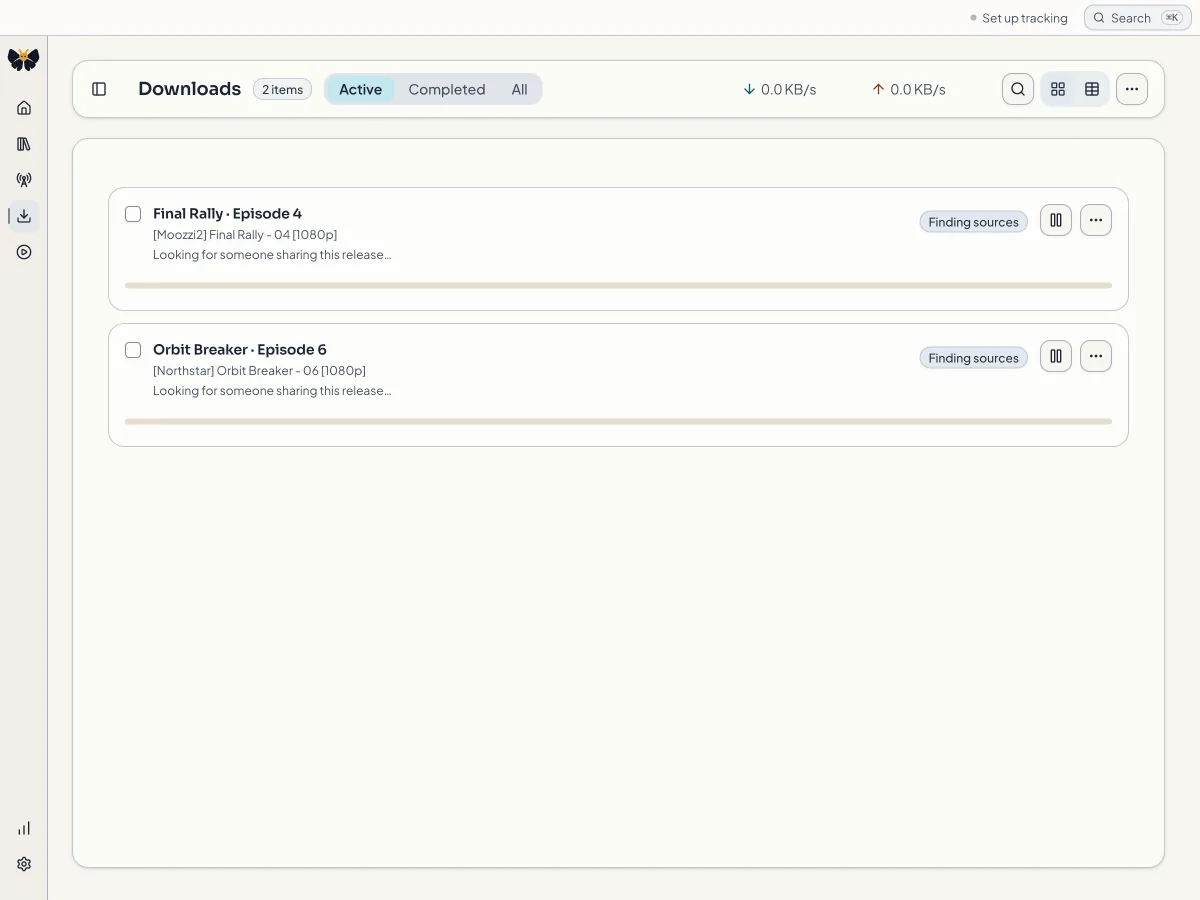
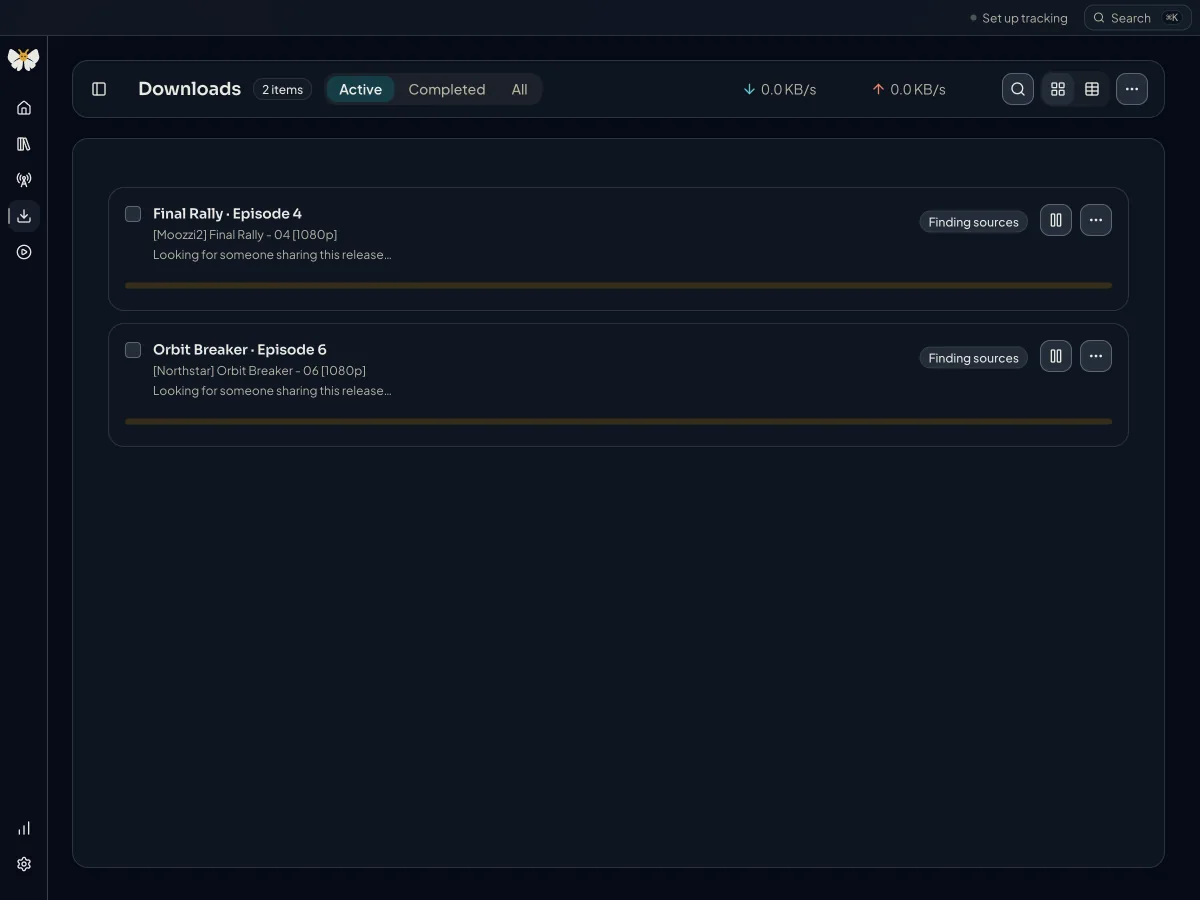
Actions per item: Pause, Resume, Try again, Find another release, Enable Standard discovery when sources are not found, Play video, Retry library import, Review library match, and Remove download. Removing a download takes it off the list; the downloaded files stay on your device. Select several items to pause, resume, retry, or remove them together.
Clear finished downloads removes completed and sharing items from the list and deletes their files only if you tick Also delete files from disk. Completed downloads are added to the library automatically; see Completion and library import.